Install WordStride
Three set-ups, one per place you write. Word on a Mac takes about ten minutes because the floating counter is a small helper app of its own. The other two take a couple of minutes.
Word on a Mac
You get the pane and the floating counter beside your line. Needs Microsoft Word from Microsoft 365 (2023 or later) on macOS 13 or later.
- Download WordStride for Mac and open the zip. Inside are three things: Install WordStride, the WordStride Overlay app, and the add-in file.
Download WordStride for Mac - Double-click Install WordStride. It copies the add-in into Word's add-ins folder and the Overlay app into your Applications folder, then opens the app. On the first install it also asks for your password or Touch ID once: that lets Word's pane talk to the Overlay on this Mac only, through a certificate that covers nothing but this computer's own local address.
Until our Apple notarisation is in place, macOS will say the installer and the app are from an unidentified developer. Close that message, open System Settings, Privacy & Security, scroll down and choose Open Anyway, then open it again. You do this once for each.
- Allow Accessibility access when the Overlay app asks. This is how it finds the line you are typing on; it reads nothing else and never changes your document. If you dismissed the prompt, open System Settings, Privacy & Security, Accessibility and switch on WordStride Overlay. A small number-square icon appears in the menu bar when the app is running.
- Quit and reopen Word. On the Home tab, at the right-hand end, there is now a WordStride button. If it is not there, choose Insert, Add-ins, My Add-ins and open WordStride from the Developer Add-ins list once.
- Open the pane and enter your key. The pane fills with yellow, types its name, then asks for the licence key from your purchase. Paste it and press Activate.

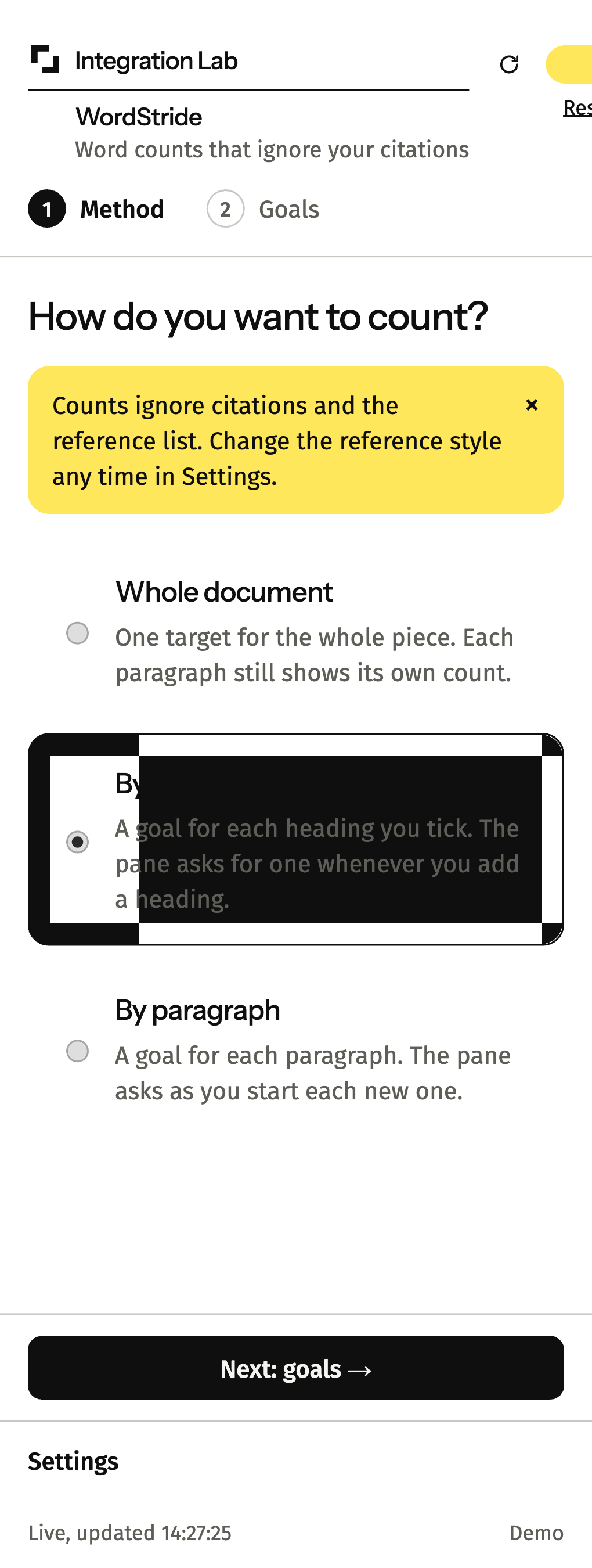
- Choose how to count. Whole document, by section, or by paragraph, then the goals. Start counting, and the counter appears in the left margin beside your line.
To have the Overlay start with your Mac, choose Open at login from its menu bar icon. To remove WordStride, delete WordStride Overlay from Applications and remove the add-in from Insert, Add-ins, My Add-ins.
Word on Windows
You get the pane. The floating counter in the margin is Mac only for now, so on Windows the pane is where the counts live.
- Open your document in Word for the web at office.com. Desktop Word on Windows will take WordStride from the Microsoft AppSource listing once that is live; until then, Word for the web is the way in.
- Download the add-in file and keep it somewhere you will find it.
Download the add-in file - Add it to Word. Choose Insert, Add-ins (or Home, Add-ins), then More Add-ins, open the My Add-ins tab, and choose Upload My Add-in. Pick the file you downloaded.
- Open the pane from the WordStride button on the Home tab, enter your licence key, and choose how to count.
Google Docs
You get the pane as a sidebar. The counts update every second or two, and confetti falls in the sidebar when you reach a goal.
- Open the WordStride template document and choose File, Make a copy. The copy carries WordStride with it; the template itself stays untouched.
Copy the template - Reload your copy, then choose Extensions, WordStride, Open WordStride.

- Authorise it the first time. Google shows a screen asking you to allow the script to see the current document and show a sidebar. Those are the only two permissions it asks for. Because the script has not yet been through Google's verification, the screen may say the app is unverified: choose Advanced, then Go to WordStride.
- Enter your licence key when the sidebar asks, and choose how to count.
Write new essays by copying your WordStride copy, or by copying the template again.
Your licence key
Your key looks like WS-LIFE-cus_…-A1B2C3D4 for a lifetime licence or WS-WEEK-sub_…-A1B2C3D4 for the weekly plan. It was shown on the page you landed on after paying and sent to the email you paid with. Enter it in the pane the first time it opens on each computer; the Settings section at the bottom of the pane has an Enter a key link if you ever need to change it. Lost it? Write to us from the email you paid with.